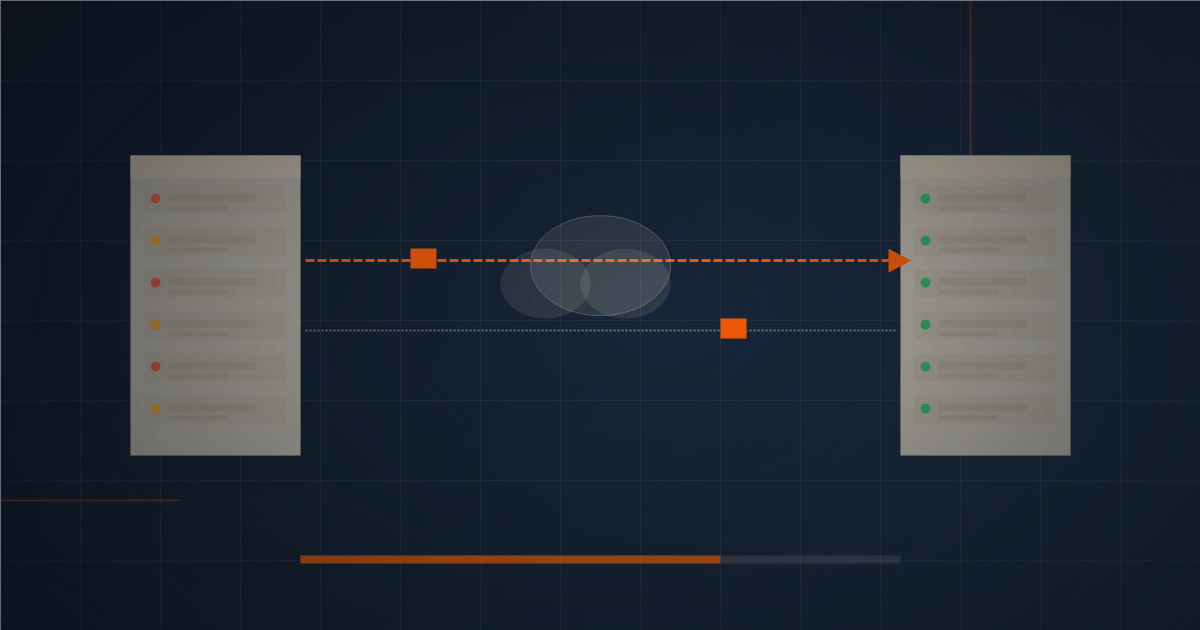
Migrating your website to a new hosting provider in South Africa does not have to mean downtime, lost emails, or days of technical headaches. Moving your website to a new hosting provider sounds complicated – but in practice, with the right approach, it can be done with zero downtime and minimal stress. This guide walks through the entire migration process step by step, written specifically for South African website owners who may not have a technical background.
📋 Key Takeaways

Why People Switch Hosting Providers
The most common reasons South African website owners switch hosting are slow load times, poor or unresponsive support, pricing that crept up at renewal, servers based overseas rather than locally, or simply outgrowing a basic plan. Whatever the reason, switching is much more straightforward than most people expect – and the improvement in performance often justifies the effort immediately.
Before You Start: What You Will Need
Before beginning a migration, make sure you have the following ready:
Never start a migration without a backup. Even if your new host offers a migration service – which most reputable ones do – having your own backup means you have a recovery option if anything unexpected happens during the process.
Step 1: Sign Up With Your New Host and Set Up the Account
Sign up with your new hosting provider before you touch anything on your current one. You want the new account fully set up and ready to receive your site before you start moving files. Most South African hosting providers activate new accounts instantly.
Step 2: Ask About Free Migration
Many hosting providers offer free website migration as part of the sign-up process. If yours does, take advantage of it – the hosting company’s team will copy your files, migrate your database, and set everything up correctly on the new server. You simply need to provide them with your current cPanel login details.
Even with a free migration service, understanding the process helps you know what to expect and how to verify that everything has moved correctly.
Step 3: Create a Full Backup on Your Current Host
Log into your current cPanel and use the Backup Wizard to download a full backup of your account – this includes all your website files, databases, email accounts, and settings. Store this backup somewhere safe (a hard drive or cloud storage, not just on the hosting server).
For WordPress sites specifically, you can also use a plugin like UpdraftPlus or All-in-One WP Migration to create a portable backup that is easy to restore on the new host.
Step 4: Restore Your Site on the New Server
Upload your files to the new server via cPanel’s File Manager or via FTP. For WordPress sites, restore your database through cPanel’s phpMyAdmin and update the wp-config.php file with the new database name, username, and password if they have changed.
Before changing your domain’s DNS records – which is what makes your domain point to the new server – verify that everything is working correctly on the new host. You can do this by temporarily modifying your local hosts file to preview the new site, or by using a tool like whatsmydns.net after the switch to monitor propagation.
Step 5: Update Your DNS Records
Your domain’s DNS (Domain Name System) records are what connect your domain name to your hosting server. To point your domain to your new host, you will update the nameservers or A record at wherever your domain is registered.
Your new host will give you the nameserver addresses to use. Log into your domain registrar and update these. DNS propagation – the time it takes for the change to spread across the internet – typically takes between one and 24 hours, though it is often much faster.
During propagation, some visitors will still see the old site and some will see the new one, depending on which DNS servers their connection uses. This is why making your new site identical to the old one before switching is important – either version should look the same to visitors.
Step 6: Verify Everything After the Switch
Once DNS has propagated, go through your site carefully and check:
Run your site through Google PageSpeed Insights again to confirm the new server is performing as expected. If you have moved to a South African host with LiteSpeed and NVMe storage, you should see a meaningful improvement in your scores.
Step 7: Keep Your Old Hosting Active for 30 Days
Do not cancel your old hosting plan immediately. Keep it active for at least 30 days after the migration. This gives you time to confirm that everything is working correctly on the new server and provides a fallback if any unexpected issues emerge. After 30 days with no problems, you can cancel the old plan with confidence.
💡 Pro Tip: Before updating your DNS, test the new site by adding a temporary hosts file entry on your computer. This lets you preview the new server without affecting live visitors.
We offer free website migration for sites moving to Web Design Hosting SA – our team handles the technical transfer so you do not have to. Our South African servers are fast, secure, and supported 24/7. Get in touch to discuss your migration, or sign up for one of our hosting plans and we will take it from there.
Will I lose data or email when I migrate?
This is the worry that keeps people on hosting they have outgrown, but a properly handled migration does not lose your website or your email. Your site files and database are copied to the new server and tested before anything switches over, so nothing is deleted from the old host until the new one is confirmed working. Done in the right order, the move is invisible to your visitors.
Email needs a little extra care, because it depends on specific DNS records, but these are recreated at the new host before the switch so mail keeps flowing. The key is sequence: set up and verify everything on the new server first, then point your domain across only when it is ready.
ℹ️ Important: Always set up and test your site and email on the new host before switching your domain over. Never cancel your old hosting until the new one is confirmed working, so you always have a fallback.
How to migrate with zero downtime
Zero-downtime migration comes down to DNS and timing. Before you switch, recreate all your DNS records, including the email records, at the new provider, and lower your DNS TTL a day in advance so the change propagates quickly. Then, when you update your domain to point at the new server, visitors move across smoothly with no gap in service.
If you are changing registrars at the same time as hosts, our guide on transferring your domain covers that side of the move. For most migrations, though, a good host will handle the entire process for you, often for free and with no downtime.
After the migration: what to check
Once the migration is complete and DNS has propagated, run a few quick checks to confirm everything is working as it should. Click through your main pages, test your contact and any checkout forms, send and receive a test email, and confirm the secure padlock is showing on every page. These few minutes catch the rare loose end before a customer does.
It is also worth keeping your old hosting active for a short while after the switch, as a safety net, before cancelling it. Once you are confident the new host is running everything smoothly, you can close the old account knowing the move is complete.
💡 Pro Tip: Keep your old hosting running for a week or two after migrating, just in case. It is cheap insurance that lets you fall back instantly if anything unexpected turns up after the switch.
Quick recap
Frequently asked questions
Will my website go down during migration?
Not if it is done correctly. By setting up and testing the new server before switching DNS, a good host can migrate your site with little or no downtime, so visitors never notice the change.
Is website migration difficult?
It can be technical, but most quality hosts handle the migration for you, often for free. You provide access to your current site, and they copy, test and switch it over with minimal effort on your part.
Will I lose my emails when I change hosts?
Not when email is migrated properly. Your mailboxes and email DNS records are recreated on the new host before the switch, so your email keeps working throughout the move.
Thinking of switching hosts? Email our team at [email protected] and we will handle the migration for you.
Switching hosts is also a good moment to make sure you are choosing well. Our guide on how to choose a web hosting provider covers what to look for, and our South African hosting plans include free migration.